 How-to
7 Ways to Remove Special Characters from a Text File
Last Updated: November 14, 2026
Quick Summary
To remove special characters from a text file, build an allowlist of the characters you want to keep, such as letters, numbers, and needed punctuation, then strip everything else. You can do this with a browser tool, the Terminal tr command, or a Python script. Always back up the original file first.
- A special character is any character that is not a letter or a number.
- Build an allowlist rather than a blocklist, because a blocklist always misses something.
- Stripping every space and line break is the most common mistake seen.
- The tr command with -c and -d flags strips everything you did not list.
- Always read and write files with an explicit encoding like utf-8 in Python.
Table of Contents
- What Counts as a Special Character in a Text File?
- How to Remove Special Characters from a Text File Online
- Step-by-Step: Clean and Save a Text File in Your Browser
- Remove Special Characters from a Text File on Mac
What Counts as a Special Character in a Text File?
A special character is any character in a text file that is not a letter or a number. That covers punctuation, symbols, invisible control codes, and accented letters that fall outside plain ASCII. If you need to remove special characters from a text file, the first job is deciding which of those groups actually counts as "special" for your purpose.
This matters more than it sounds. A file full of smart quotes and em dashes from a word processor is a different problem from a CSV with stray pipes and tabs. A developer pasting a log file has a different goal again.
TextUtility offers browser-based tools for this kind of cleanup. Special characters usually fall into three categories:
- Punctuation: periods, commas, exclamation marks, quotation marks, semicolons
- Symbols: number signs, dollar signs, slashes, ampersands, brackets
- Hidden characters: spaces, tabs, line breaks, non-breaking spaces, invisible formatting codes
Most people only think about the first two. The hidden set causes the most damage, because you cannot see it in a plain text editor.
Smart quotes are a good example of a special character that trips people up. If you are dealing with those specifically, our guide on how to remove smart quotes from text walks through the fix.
Alphanumeric vs. Symbols: Deciding What to Keep
Before you delete anything, write down what must survive. This is the step almost everyone skips, and it is the one that causes the most rework.
Alphanumeric characters are letters (a-z, A-Z) and numbers (0-9). Everything else is a candidate for removal. But "candidate" is not the same as "delete."
Here is the rule we recommend: build an allowlist, not a blocklist. Decide what stays, and strip everything else. A blocklist always misses something.
| Keep or remove | Character type | Example | Risk if removed by mistake |
|---|---|---|---|
| Usually keep | Letters and numbers | a-z, 0-9 | Destroys all content |
| Keep for prose | Periods and commas | . , | Sentences run together |
| Keep for data | Hyphens and underscores | - _ | Breaks IDs and file names |
| Usually remove | Smart quotes | ' ' " " | Corrupts code and CSV |
| Usually remove | Symbols | # $ % & / | Breaks parsing |
| Remove carefully | Line breaks | \n | Collapses a whole file to one line |
Watch out: stripping every space and line break is the single most common mistake we see. It turns a readable file into one unbroken string. If you only need to tidy spacing, use a whitespace remover rather than a full character strip.
How to Remove Special Characters from a Text File Online
A browser tool is one route: paste your text, choose what to strip, and copy the clean result. No install and no account are needed.
This works well for files under a few megabytes. It is also the right choice when you are on a machine where you cannot install software, like a shared laptop or a locked-down work computer.
The catch is trust. Some online tools upload your text to a server to process it. For a client contract or an unpublished manuscript, that is a risk worth checking.
That is the reason TextUtility processes text locally in your browser. Your file never leaves your device, and there is no sign-up step. If you want to know what to look for before pasting anything sensitive, read our guide on how to check if online text processing is private.
Step-by-Step: Clean and Save a Text File in Your Browser
Here is the full workflow, from messy file to saved clean copy. It takes a few minutes.
- Make a backup. Copy the original file first. Always.
- Open the file in any plain text editor and select all.
- Paste the text into the tool's input box.
- Choose your removal option. Decide whether to keep letters, numbers, spaces, and line breaks.
- Run the cleanup and check the preview.
- Compare before and after if the tool offers a diff view.
- Copy the result back into a new file and save it under a new name.
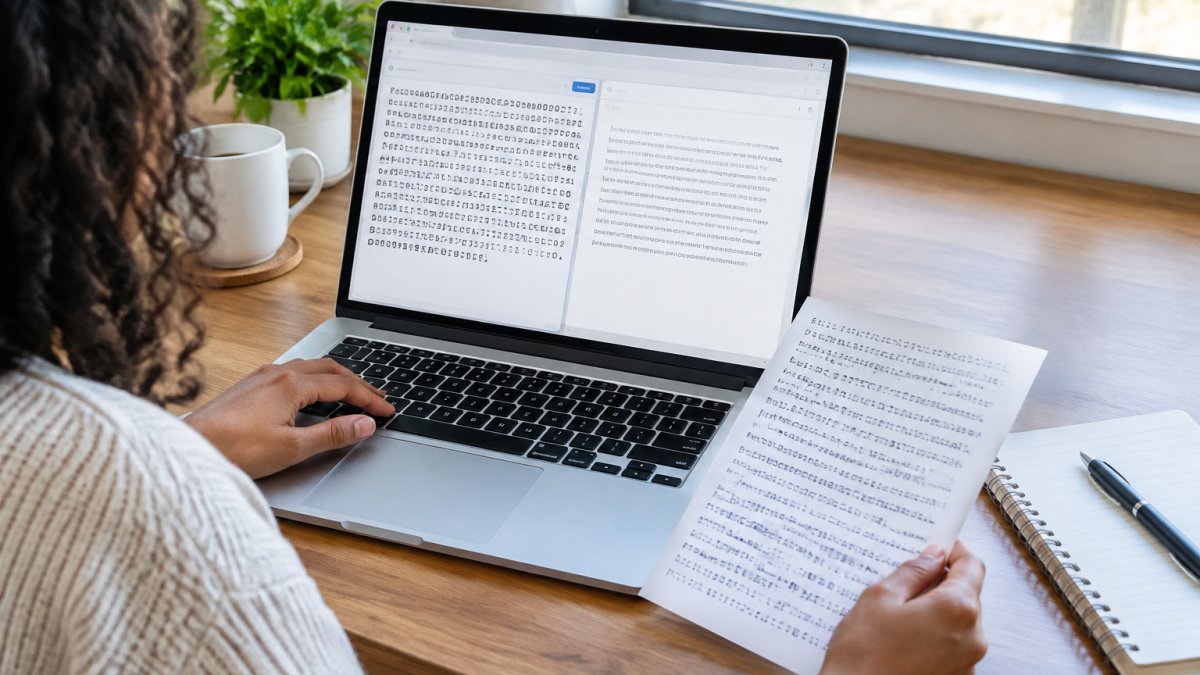
Expected result: a new file with only the characters you chose to keep, and the original untouched.
The compare step is worth the extra minute. A diff view shows exactly what changed, so you catch an over-aggressive strip before you save it. That is what a text difference checker is for.
Remove Special Characters from a Text File on Mac
On a Mac, you have three practical options: a text editor, the Terminal, or a browser tool. Each suits a different file size.
Text editor route: open the file in TextEdit in plain text mode, then use Find and Replace with a regular expression. This is fine for small files and one-off fixes.
Terminal route: the tr command is the workhorse. To keep only letters, numbers, and basic punctuation, run:
tr -cd '[:alnum:] .,\n' < input.txt > output.txt
The `-c` flag inverts the set, and `-d` deletes. Together they strip everything you did not list.
**Browser route:** paste the text into a browser tool and choose the same rules. This can be simpler if you are not comfortable in Terminal.
One warning for Mac users: TextEdit sometimes saves in rich text format, which adds hidden formatting codes. Save as plain text first, or those codes become special characters you have to clean later.
## Remove Special Characters from a String in Python
For developers, Python gives you clean, repeatable control. This is the right tool when you need to clean hundreds of files the same way.
The simplest approach uses a generator with a keep test:
```python
import string
def clean(text):
allowed = set(string.ascii_letters + string.digits + " .,\n")
return ''.join(ch for ch in text if ch in allowed)
That is the allowlist pattern in code. You list what survives, and everything else is dropped.
To check what you are actually dealing with first, use `repr()`. It shows hidden characters that a normal print hides:
```python
print(repr(open('input.txt').read()[:200]))
You will see `\n` for line breaks and `\xa0` for non-breaking spaces. That second one is the invisible culprit behind a lot of failed cleanups.
For pattern-based removal, `re.sub()` is the standard approach:
```python
import re
cleaned = re.sub(r'[^A-Za-z0-9 .,\n]', '', text)
Watch out: always read and write files with an explicit encoding, like `encoding='utf-8'`. Skip it and Python may raise an illegal byte sequence error on non-English text.
## Find Special Characters Online in Text Before You Remove Them
Finding comes before removing. If you cannot see the problem characters, you cannot choose the right rule.
A good inspection pass shows you three things: the character count, the line count, and any characters that are not plain ASCII. That last check is what catches smart quotes and invisible formatting.
The practical test is a side-by-side comparison. Paste the original into one box and your cleaned version into another, then look for differences. A diff view can highlight additions, deletions, and unchanged words, so you can check the strip worked.
If your text came from a PDF or a web page, invisible formatting is a likely stowaway. Our guide on [how to remove invisible formatting from copied text](https://blog.textutility.io/remove-invisible-formatting-from-copied-text) covers how to spot and strip it.
## Build a Safe Allowlist and Avoid Breaking Non-English Text
Non-English text is where aggressive cleaning goes wrong. Strip "non-ASCII" characters and you delete every accented letter, every curly quote, and every character in a non-Latin script.
The fix is to think in terms of encoding. **UTF-8** is the standard character encoding for the web, and it handles virtually every writing system. If you are working with text in more than one language, UTF-8 is the only sensible default.
Your allowlist should account for this:
- Keep accented letters when the text is prose in a European language
- Keep the full character range when the file contains non-Latin scripts
- Never use a blanket "remove non-ASCII" rule on mixed-language files
- Test on a sample before running the rule on the whole file
For code and data files, a strict ASCII allowlist is fine. For anything a human will read, loosen it.
## Pick a TextUtility Tool and Clean Your File Now
The right method depends on the job, not on what is trendy. Here is one way to choose:
| Situation | Best method | Why |
| --- | --- | --- |
| One small file, quick fix | Browser tool | No setup, instant result |
| Confidential document | Browser tool with local processing | Text stays on your device |
| Many files, same rule | Python script | Repeatable and fast |
| Mac or Linux, no install | Terminal `tr` command | Built in, no dependencies |
| Mixed-language text | Any method with a UTF-8 allowlist | Preserves accents and scripts |
If you only clean a file now and then, a browser tool is the sensible default. If you clean the same kind of file every week, write a script once and reuse it.
---
Cleaning text should not require an account, an install, or a leap of faith about where your file ends up. TextUtility gives you browser-based tools that run locally, with no sign-up, no uploads, and no server round trip. You get a fast character cleaner, a whitespace remover, and a diff checker that work the same on your phone as on your desktop. Get started with TextUtility and turn a messy text file into a clean one in under a minute.
<section style="margin:3rem 0 2rem 0;" itemscope itemtype="https://schema.org/FAQPage"><h2 style="font-weight:700; margin:0 0 4px 0;">Frequently Asked Questions</h2><div style="padding:20px 0; border-bottom:1px solid #e5e7eb;" itemscope itemprop="mainEntity" itemtype="https://schema.org/Question"><h3 style="font-weight:600; margin:0 0 8px 0;" itemprop="name">How do I remove special characters from a text file without deleting spaces or punctuation I need?</h3><div style="line-height:1.7;" itemscope itemprop="acceptedAnswer" itemtype="https://schema.org/Answer"><p itemprop="text" style="margin:0;">Use an allowlist approach: explicitly keep letters, numbers, spaces, and only the punctuation marks you want (periods, commas, hyphens). In a browser tool, paste your text and select the removal option that preserves spaces and line breaks. On Mac, the tr command can delete only specified characters. In Python, a regex like re.sub(r'[^a-zA-Z0-9\s.,-]', '', text) keeps only those safe characters. Always preview the result before saving.</p></div></div><div style="padding:20px 0; border-bottom:1px solid #e5e7eb;" itemscope itemprop="mainEntity" itemtype="https://schema.org/Question"><h3 style="font-weight:600; margin:0 0 8px 0;" itemprop="name">Can I remove special characters from text copied from ChatGPT or other AI tools?</h3><div style="line-height:1.7;" itemscope itemprop="acceptedAnswer" itemtype="https://schema.org/Answer"><p itemprop="text" style="margin:0;">Yes. AI-generated text often includes em dashes, curly quotes, and other typographic symbols that can break formatting. Paste the text into a browser-based cleaner that strips non-ASCII characters, or use a regex to target those specific symbols. If you need to keep accented letters for non-English text, use a Unicode-aware filter instead of a simple ASCII-only removal.</p></div></div><div style="padding:20px 0; border-bottom:1px solid #e5e7eb;" itemscope itemprop="mainEntity" itemtype="https://schema.org/Question"><h3 style="font-weight:600; margin:0 0 8px 0;" itemprop="name">What is the easiest way to find special characters in a text file before removing them?</h3><div style="line-height:1.7;" itemscope itemprop="acceptedAnswer" itemtype="https://schema.org/Answer"><p itemprop="text" style="margin:0;">Use a browser tool that highlights or lists non-alphanumeric characters, or search with a regex like [^a-zA-Z0-9\s] in a text editor that supports regular expressions. On the command line, grep -n '[^a-zA-Z0-9[:space:]]' file.txt shows lines containing special characters. Finding them first helps you decide which ones to keep, especially in code snippets or manuscripts where punctuation carries meaning.</p></div></div><div style="padding:20px 0; border-bottom:1px solid #e5e7eb;" itemscope itemprop="mainEntity" itemtype="https://schema.org/Question"><h3 style="font-weight:600; margin:0 0 8px 0;" itemprop="name">How do I handle encoding errors like 'illegal byte sequence' when removing special characters on Mac?</h3><div style="line-height:1.7;" itemscope itemprop="acceptedAnswer" itemtype="https://schema.org/Answer"><p itemprop="text" style="margin:0;">The tr command may fail on UTF-8 files with multibyte characters. Set LC_ALL=C before running tr to treat the file as raw bytes, or use sed with a UTF-8 locale. For safer handling, use Python with open(file, encoding='utf-8') and a regex that respects Unicode. Always back up the original file before running any bulk removal, and test on a small sample first.</p></div></div></section>